Create an App Registration for SharePoint Integration
A guide to creating an app registration in Microsoft Entra ID for integrating with SharePoint Online. This is required for enabling features that require authentication and authorization with Microsoft Graph API or SharePoint REST API.
Create App Registration
Login to portal.azure.com and go to Microsoft Entra ID.
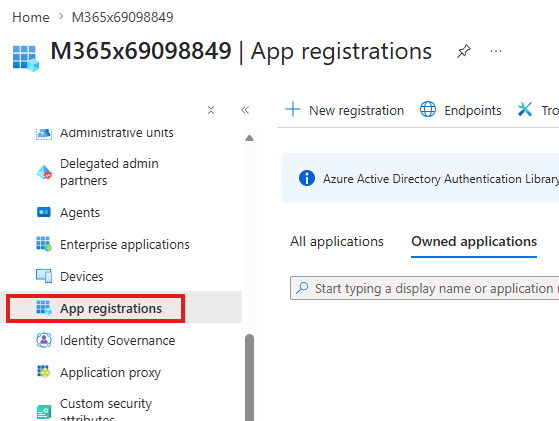
1. Open App registrations
In the left hand side pane, click App registrations.
2. Create a new registration
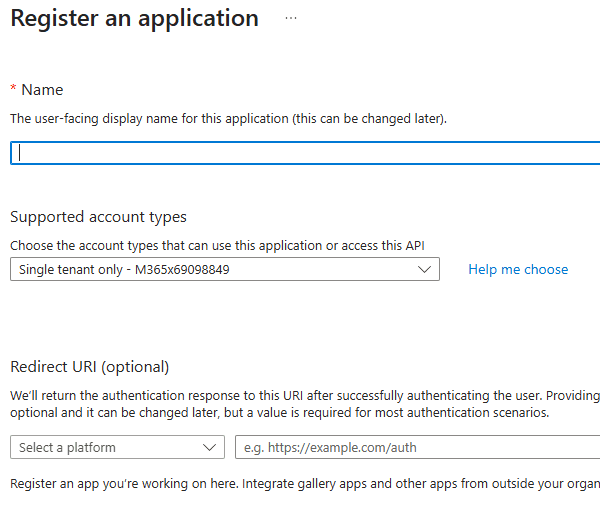
Click the New registration button in the right hand side pane. The following screen will show up. Enter a name for the app registration and click Register.
3. Open API permissions
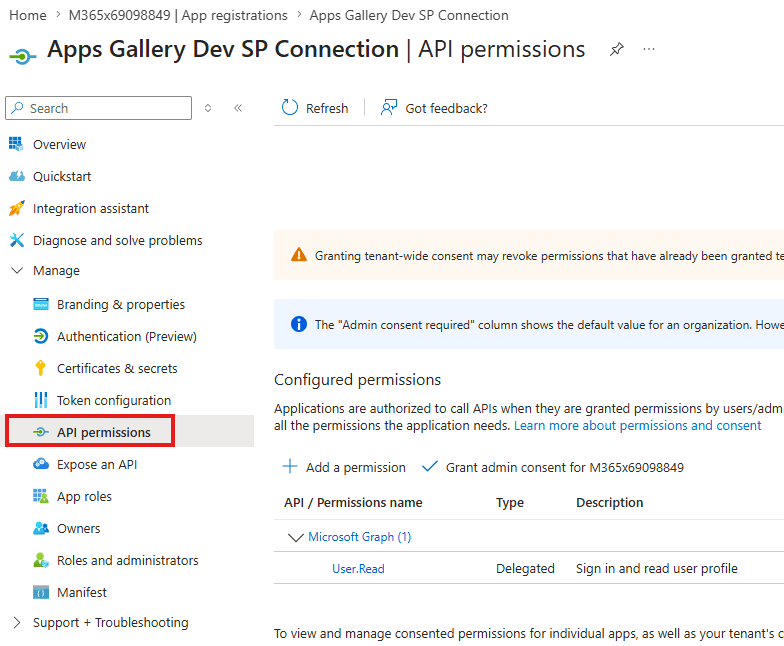
Once it is created, the app registration page will open. Navigate to API Permissions.
4. Add the required Application permissions
Click Add a permission in the right hand side pane to add the required Application permissions:
Sites.Manage.AllSites.ReadWrite.All
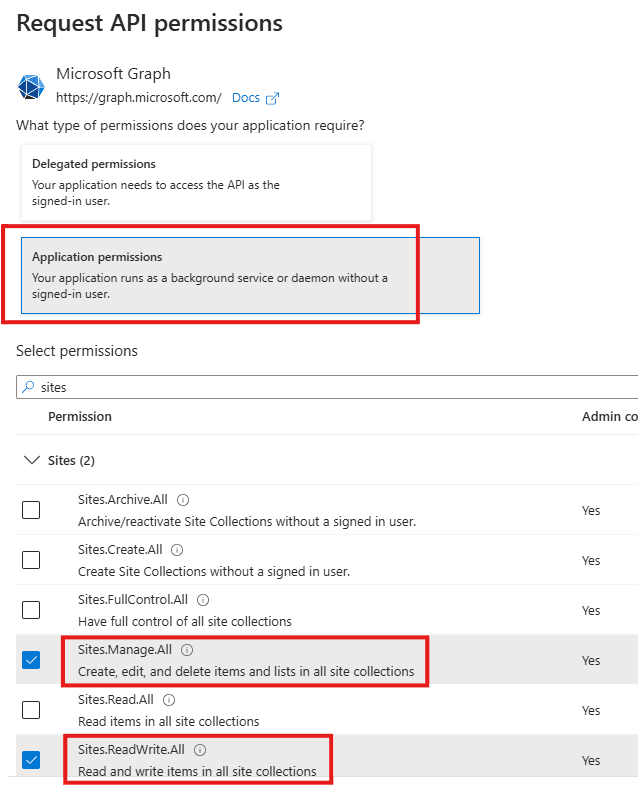
Click Add permissions to complete this step.
If you want to give permission to specific sites instead of all sites, you can choose the Sites.Selected permission and follow this Microsoft article to create Manage and ReadWrite permissions for specific sites.
5. Grant admin consent
You will then see the permissions are added and being displayed in the configure permissions table. Now click the Grant admin consent button.
Note: you will need the Global Admin role to be able to grant admin consent.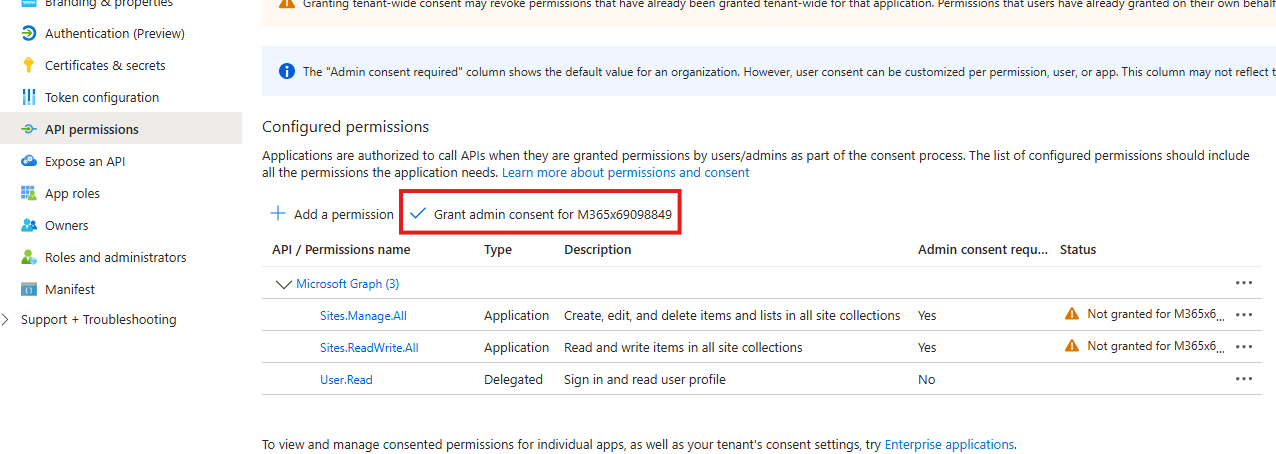
Generate Certificate
Use the PowerShell script below to generate a .cer certificate file.
$cert = New-SelfSignedCertificate -Subject "CN=AppsGallerySPCert" `
    -CertStoreLocation "Cert:\CurrentUser\My" `
    -KeySpec Signature `
    -NotAfter (Get-Date).AddYears(99)

Export-Certificate -Cert $cert -FilePath "<your local path>\AppsGallerySPCert.cer"
The second line of the script saves the .cer file to your local file system. Browse to that folder to confirm you can see the .cer file.
1. Open Manage user certificates
Click the Start menu of your Windows machine and search for "Manage user certificates".
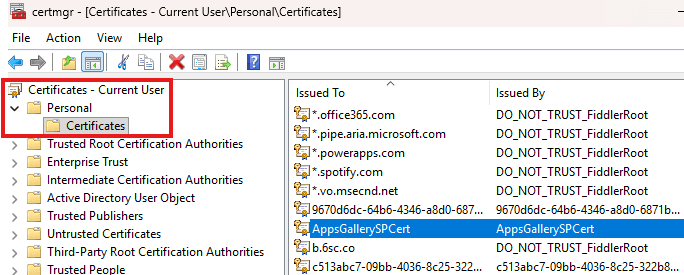
2. Export the private key (.pfx)
Locate the certificate you created and export the private key (
.pfx) file to your local disk.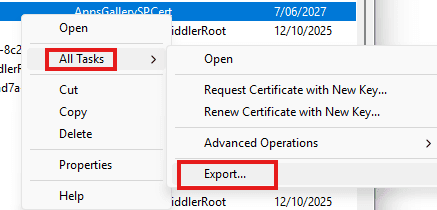
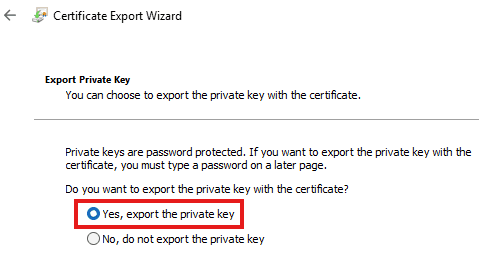
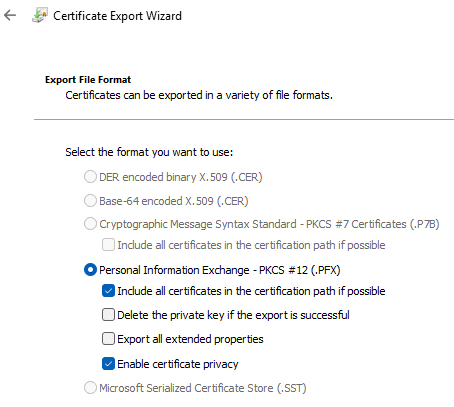
3. Set a password
Note: You need to enter a password on the screen below. Keep note of the password — you will need to supply it when setting up the connection later.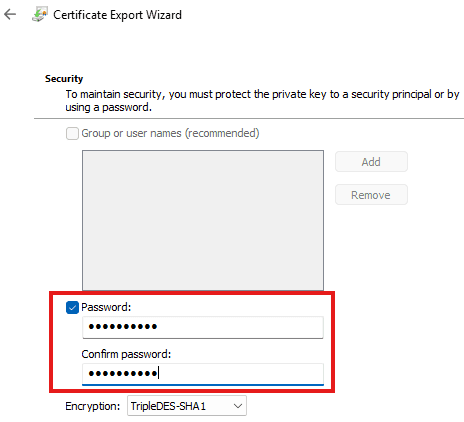
Then save the
.pfxfile to your local file system.
- The
.cerfile — uploaded against the app registration. - The
.pfxfile — uploaded into D365.
Upload .cer to App Registration
Go to the Azure portal and locate the app registration you created in the previous step.
1. Open Certificates & secrets
Click on Certificates & secrets, and locate the Certificates tab in the right hand side pane.
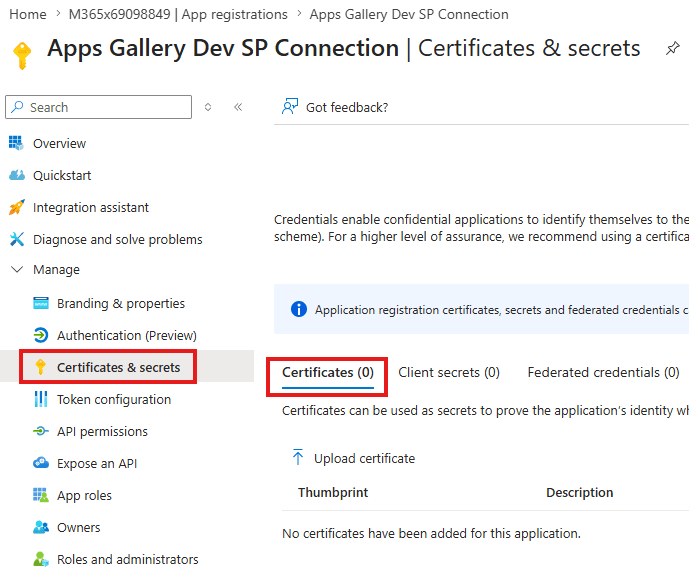
Click Upload certificate and select the
.cerfile from your local file system. Once successfully uploaded, you should see the certificate in the list.2. Capture the Client Id and Tenant Id
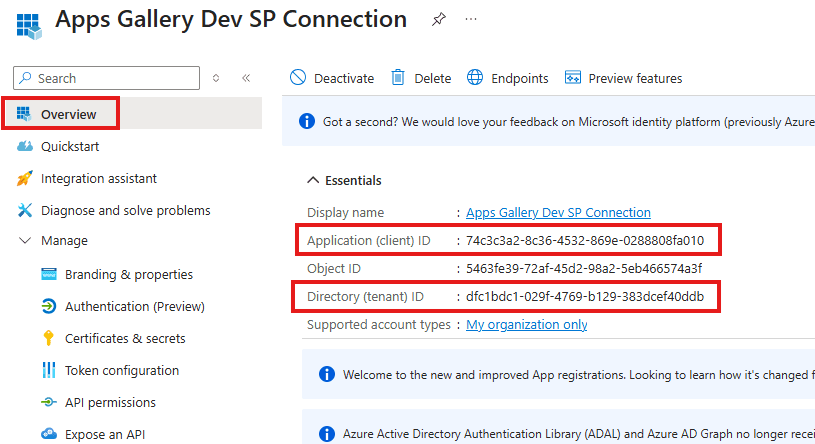
Now go back to the Overview page of this app registration. Take note of the Client Id and Tenant Id as shown below — you will need them to complete the connection setup in D365.
Need more help?
Reach out via the Contact Us page and we'll get back to you.